# 电子表格常见问题
## 1. 如何获取电子表格 token?
每个表格都有一个 `spreadsheetToken` 作为唯一标识。你可通过以下任一方式获取表格的 `spreadsheetToken`:
- 电子表格的 URL:https://sample.feishu.cn/sheets/==Iow7sNNEphp3WbtnbCscPqabcef==
- 通过调用[获取文件夹中的文件清单](https://open.feishu.cn/document/uAjLw4CM/ukTMukTMukTM/reference/drive-v1/file/list) 获取warning
对于知识库中的电子表格,你需调用[获取知识空间节点信息](https://open.feishu.cn/document/ukTMukTMukTM/uUDN04SN0QjL1QDN/wiki-v2/space/get_node)接口来获取电子表格的 `obj_token`。此时,该 `obj_token` 也是该表格的 `spreadsheetToken`。
---
## 2. 电子表格的相关限制有哪些?
电子表格整体有如下限制:
- 单个电子表格中工作表的数量不可超过 300 个
- 单个工作表中列的数量不可超过 13,000 列(包含空列)
- 单个工作表中单元格的数量不可超过 5,000,000 个(包含空单元格)
- 单个单元格中的字符数量不可超过 45,000 个
- 单篇文档中电子表格的数量不可超过 1,500 个
---
## 3. 如何给应用身份添加电子表格的访问权限?
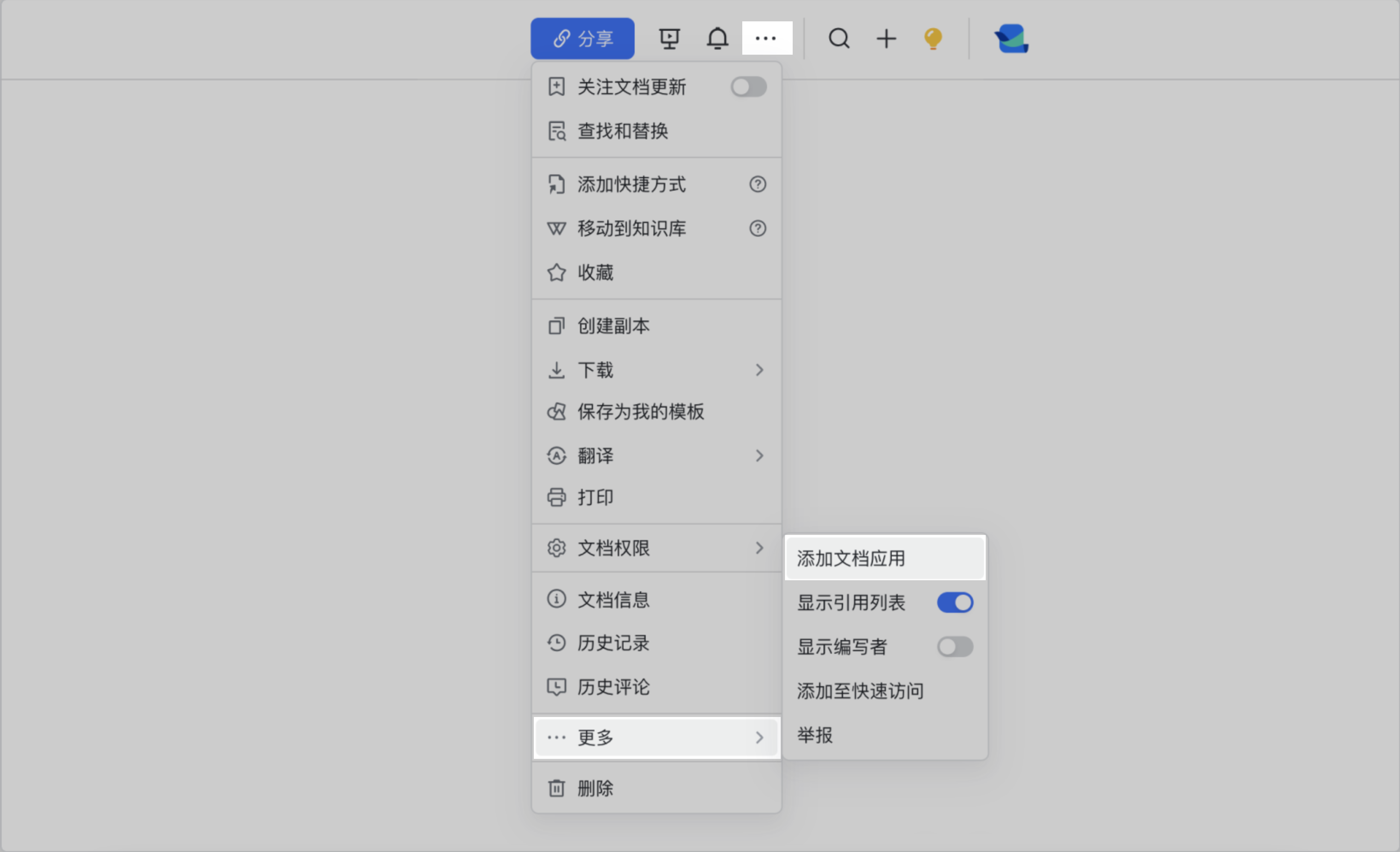
你需要通过添加应用为电子表格协作者,来为其开通权限。详情参考[云文档常见问题](https://open.feishu.cn/document/ukTMukTMukTM/uczNzUjL3czM14yN3MTN#78a03ee2)问题 3,添加应用为电子表格的协作者,为其开通阅读权限。
---
## 4. 创建电子表格,显示 no folder permission,该如何解决?
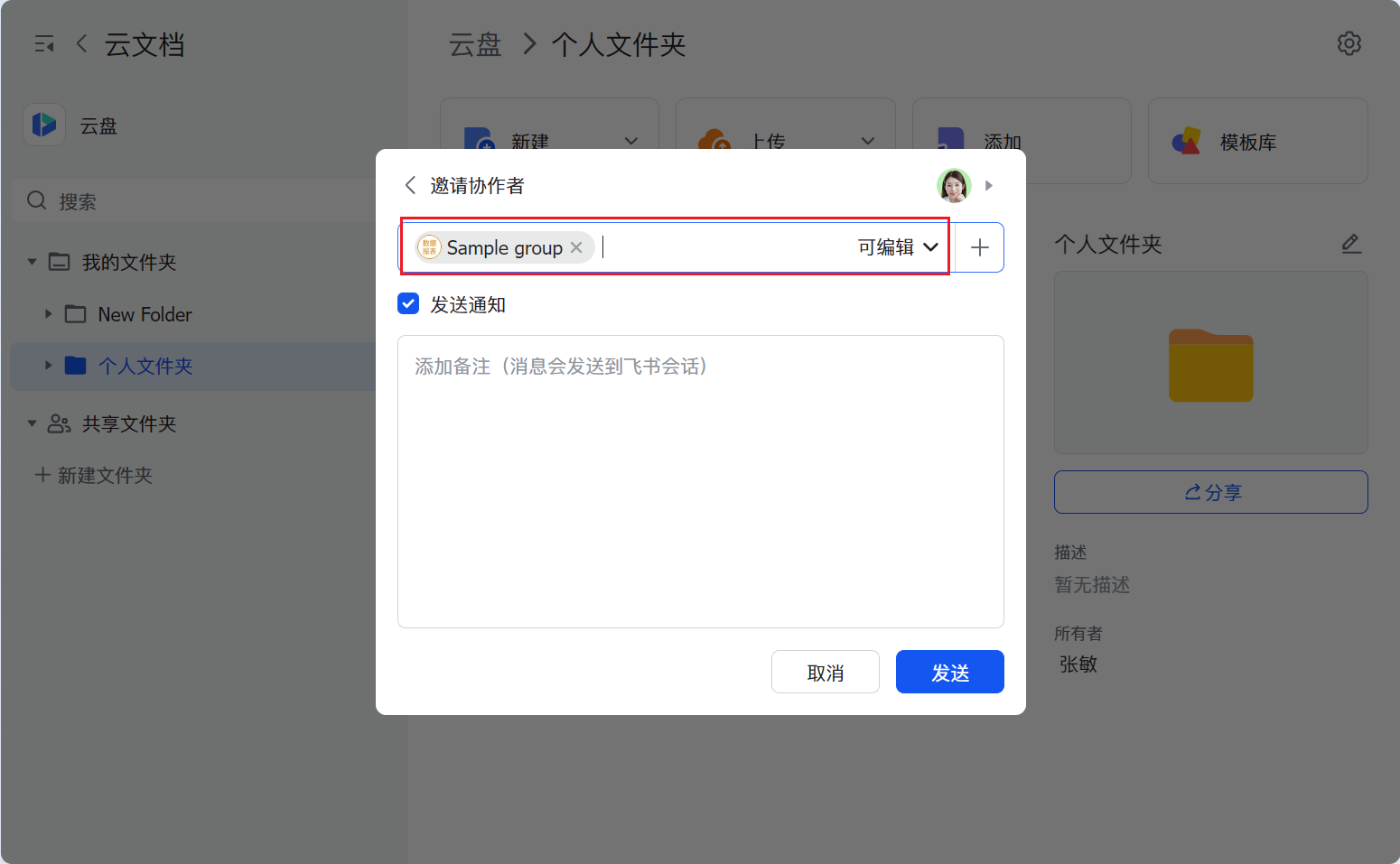
当前调用身份没有在指定文件夹下新增云文档的权限。详情参考[如何为应用开通云文档相关资源的权限](https://open.feishu.cn/document/uAjLw4CM/ugTN1YjL4UTN24CO1UjN/trouble-shooting/how-to-add-permissions-to-app),添加用户或应用为指定文件夹的协作者,为其开通编辑权限。
---
## 5. 为什么有的电子表格接口无法在 API 调试台调试?
因为这些接口为 v2 版本的接口,现阶段仅支持调试 v3 版本接口。
**说明**:v2 版本的接口是指在接口的 HTTP URL 含有 `v2` 标识的接口。如[增加行列](https://open.feishu.cn/document/ukTMukTMukTM/uUjMzUjL1IzM14SNyMTN)的 URL `/sheets/v2/spreadsheets/:spreadsheet_token/dimension_range` 中含有 `v2`,标识该接口为 v2 版本接口。 )
---
## 6. 调用[更新工作表属性](https://open.feishu.cn/document/ukTMukTMukTM/ugjMzUjL4IzM14COyMTN)时,更新成功,但实际工作表标题并未更新?
更新的标题需符合以下规则:
- 长度不超过 100 个字符
- 不包含这些特殊字符:`/ \ ? * [ ] :`
---
## 7. 如何向电子表格中插入带颜色的数据?
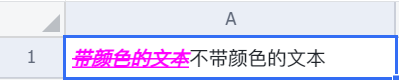
调用[插入数据](https://open.feishu.cn/document/ukTMukTMukTM/uIjMzUjLyIzM14iMyMTN)接口,参考如下请求体示例,为单元格中局部内容设置颜色和其它文本样式。了解其它文本样式,参考[局部样式](https://open.feishu.cn/document/ukTMukTMukTM/ugjN1UjL4YTN14CO2UTN#e5f8fe55)。
```json
{
"valueRange": {
"range": "2jm6f6!A1:A1",
"values": [
[
[
{
"text": "带颜色的文本",
"type": "text",
"segmentStyle": {
"bold": true,
"italic": true,
"strikeThrough": true,
"underline": true,
"foreColor": "#ff00ff"
}
},
{
"text": "不带颜色的文本",
"type": "text"
}
]
]
]
}
}
```
## 8. 如何获取并下载电子表格中的图片?
1. 判断图片为单元格图片还是浮动图片。单元格图片为内嵌在某个单元格中的图片;浮动图片为悬浮在工作表上的图片。
1. 调用接口,获取图片的唯一标识:
- 如果图片为浮动图片,调用[获取浮动图片](https://open.feishu.cn/document/ukTMukTMukTM/uUDN04SN0QjL1QDN/sheets-v3/spreadsheet-sheet-float_image/get)接口,获取图片的 `float_image_token`
- 如果图片为单元格图片:调用[读取单个范围](https://open.feishu.cn/document/ukTMukTMukTM/ugTMzUjL4EzM14COxMTN)或[读取多个范围](https://open.feishu.cn/document/ukTMukTMukTM/ukTMzUjL5EzM14SOxMTN)接口,获取图片的 `fileToken`。以下为请求体示例:
```bash
curl --location --request GET 'https://open.feishu.cn/open-apis/sheets/v2/spreadsheets/XUMasQlMYhOnMbt5htXc96abcef/values/2jm6f6!B1:B1' \
--header 'Authorization: Bearer t-ce3540c5f02ac074535f1f14d64fa90fa49621c0'
```
如果调用成功,预计将返回以下数据:
```json
{
"code": 0,
"data": {
"revision": 112,
"spreadsheetToken": "XUMasQlMYhOnMbt5htXc96abcef",
"valueRange": {
"majorDimension": "ROWS",
"range": "2jm6f6!B1:B1",
"revision": 112,
"values": [
[
{
"fileToken": "UeZNbAxAIojSuRxarT1ccsabcef",
"height": 1994,
"link": "https://internal-api-drive-stream.feishu.cn/space/api/box/stream/download/v2/cover/UeZNbAxAIojSuRxarT1ccsabcef/?height=1280&mount_node_token=Iow7sNNEphp3WbtnbCscPqQPnTd&mount_point=sheet_image&policy=equal&width=1280",
"text": "",
"type": "embed-image",
"width": 3278
}
]
]
}
},
"msg": "success"
}
```
1. 基于单元格图片的 `fileToken` 或浮动图片的 `float_image_token` ,调用[下载素材](https://open.feishu.cn/document/uAjLw4CM/ukTMukTMukTM/reference/drive-v1/media/download)接口下载对应的图片。
## 9. 如何在电子表格中写入日期?
1. 调用[设置单元格样式](https://open.feishu.cn/document/ukTMukTMukTM/ukjMzUjL5IzM14SOyMTN)接口,将单元格设置为日期格式,请求体示例如下所示:
```json
{
"appendStyle":{
"range": "vJFUIq!A1:A10",
"style":{
"formatter":"yyyy/MM/dd"
}
}
}
```
2. 调用[向单个范围写入数据](https://open.feishu.cn/document/ukTMukTMukTM/uAjMzUjLwIzM14CMyMTN),写入浮点类型的数据,请求体示例如下所示:
```json
{
"valueRanges": [
{
"range": "vJFUIq!A1:A10",
"values": [
[
0
],
[
1
],
[
2
],
[
42101
]
]
}
]
}
```
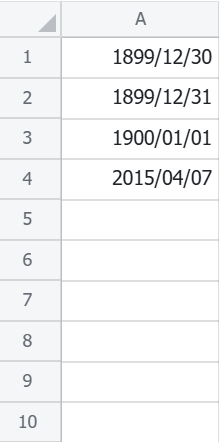
其中,整数部分为自 1899 年 12 月 30 日以来的天数;小数部分为该时间占 24 小时的份额。上述示例写入后日期展示如下图所示: