# Custom bot usage guide

A custom bot is a bot that can only be used in the current group chat. This type of robot can complete the message push by calling the webhook address in the current group chat without being reviewed by the tenant administrator. This article mainly introduces how to use custom robots.

## Precautions

- Custom bot can only be used in the current group chat. The same custom bot cannot be added to other group chats.

- You need to have a certain server-side development foundation, and realize the message push function by calling the webhook address of the custom robot by request.

- Custom bots are ready to use after being added to a group, no tenant admin approval required. This feature improves the portability of developing robots, but for the sake of tenant data security, it also limits the usage scenarios of custom robots, and custom robots do not have any data access rights.

- If you want to implement robot group management, user information acquisition and other capabilities, it is recommended to refer to [Session-based interactive robot]((https://open.feishu.cn/document/uAjLw4CM/uMzNwEjLzcDMx4yM3ATM/develop-a-card-interactive-bot/introduction)), through the robot application. For a comparison of the capabilities of custom bots and robot applications, see [Comparison of Capabilities](https://open.feishu.cn/document/uAjLw4CM/ukTMukTMukTM/bot-v3/bot-overview#6994dff4).
- The frequency control of the customized robot is different from the normal application, which is 100 times/minute and 5 times/second for single tenant single bot. **It is recommended to avoid sending messages at whole time and half time such as 10:00, 17:30, etc**. Otherwise, there may be 11232 flow limiting error due to system pressure, resulting in failure of message sending.

- When sending a message, the request body data size cannot exceed 20 KB.

## Features

There are scenarios where enterprises automatically push messages to specific groups, for example, pushing monitoring alarms, sales leads, and operational content. In this type of scenario, you can add a custom robot to the group. The custom robot provides a webhook by default. By calling the webhook address from the server, the message notification from the external system can be pushed to the group in real time. The custom robot also includes security configurations in three dimensions: **custom keywords**, **IP whitelist** and **signature**, which is convenient for controlling the scope of webhook calls.

An example of a custom robot message push, as shown in the following figure:

![image.png](//sf3-cn.feishucdn.com/obj/open-platform-opendoc/4267f717b2a7e9ecc6f799cb923c6a6c_MsgEyhBpcy.png?height=380&lazyload=true&maxWidth=600&width=891)

## Add a custom bot to the group

### Procedure

1. Invite custom robots into the group.
     1. Enter the target group, click the More button in the upper right corner of the group, and click **Settings**.

![](//sf3-cn.feishucdn.com/obj/open-platform-opendoc/9a341769794274cdffa2725b3a2dab39_PMIhExaSBR.png?height=1494&lazyload=true&maxWidth=600&width=1804)

2. On the **Settings** interface on the right, click **Bots**.

![](//sf3-cn.feishucdn.com/obj/open-platform-opendoc/cf9052f6f6ede7ccd610c70723fab7c5_L3Q9wzIDrX.png?height=1492&lazyload=true&maxWidth=600&width=1802)

3. On the **Bots** interface, click **Add Bot**.

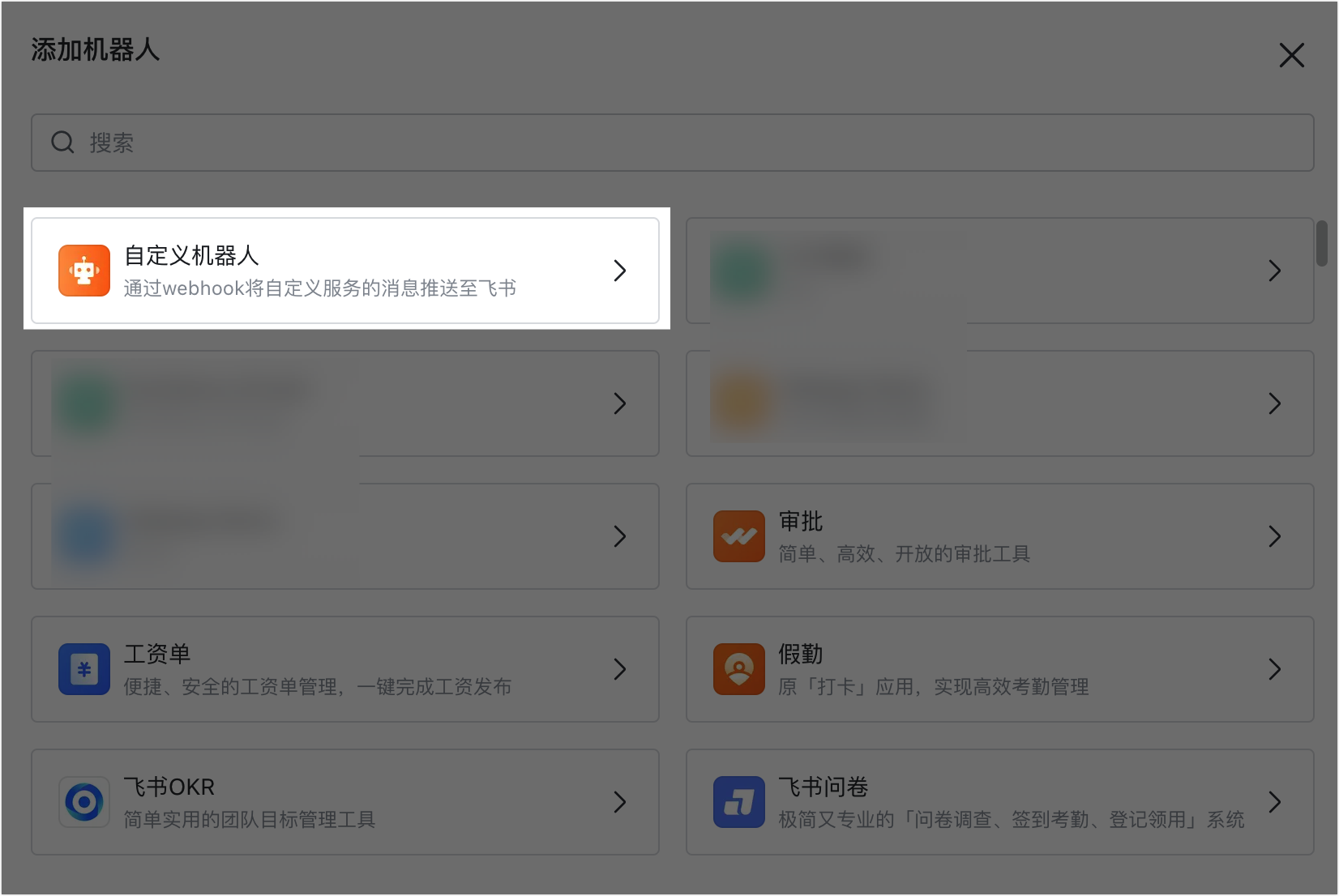
4. In the **Add bot** dialog box, find and click **Custom bot**.

![](//sf3-cn.feishucdn.com/obj/open-platform-opendoc/dd7559012f92990ae2a7ca01a8811cd0_7bB3GgaFEQ.png?height=1100&lazyload=true&maxWidth=600&width=1648)

5. Set the avatar, name and description of the custom robot, and click **Add**.

![](//sf3-cn.feishucdn.com/obj/open-platform-opendoc/9e26663ceb1618b686fa2ecddca3a671_okcWrzCKdJ.png?height=1122&lazyload=true&maxWidth=600&width=1646)

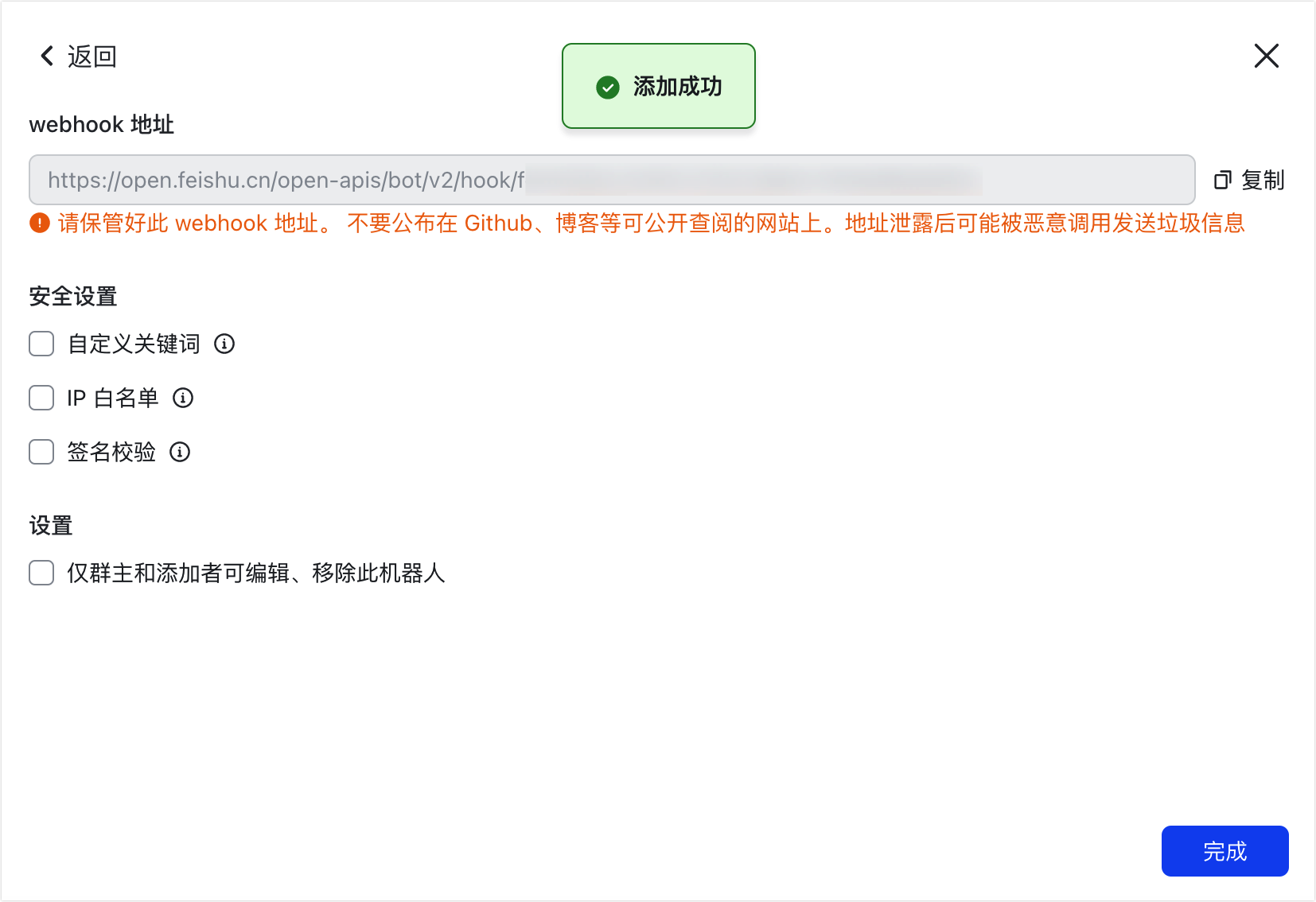
2. Obtain the webhook address of the custom bot and click **Finish**.

The **Webhook URL** format corresponding to the robot is as follows:

```
     https://open.feishu.cn/open-apis/bot/v2/hook/xxxxxxxxxxxxxxxxx
     ```warning
**Please keep this webhook address properly** and do not publish it on publicly accessible websites such as Gitlab and blogs to avoid being maliciously called to send spam messages after the address is leaked.

![image.png](//sf3-cn.feishucdn.com/obj/open-platform-opendoc/8483086e1486f2367562235feeab0db1_5YVe4dSg7d.png?height=1134&lazyload=true&maxWidth=600&width=1660)

Later, you can click the robot picture to the right of the group name to enter the custom robot details page and manage the configuration information of the custom robot.

![](//sf3-cn.feishucdn.com/obj/open-platform-opendoc/5fbab7bcacc0ce7222ff0a2e5cda991c_scxzyk3JAV.png?height=1304&lazyload=true&maxWidth=600&width=2264)

3. Test calling the webhook address of the custom robot to send a message to the group it belongs to.

1. Initiate an HTTP POST request to the webhook address in any way.

You need to have a certain server-side development foundation, and call the webhook address through the server-side HTTP POST request. Taking the curl command as an example, the request example is as follows. You can execute the following command through the terminal of the macOS system or the console application of the Windows system to test.

- macOS

```bash
          curl -X POST -H "Content-Type: application/json" \
              -d '{"msg_type":"text","content":{"text":"request example"}}' \
              https://open.feishu.cn/open-apis/bot/v2/hook/****
          ```

- Windows(cmd)

```bash
          curl -X POST -H "Content-Type: application/json" -d "{\"msg_type\":\"text\",\"content\":{\"text\":\"request example\"}}" https://open.feishu.cn/open-apis/bot/v2/hook/****
          ```

- Windows(PowerShell)

```bash
          curl.exe -X POST -H "Content-Type: application/json" -d '{\"msg_type\":\"text\",\"content\":{\"text\":\"requestexample\"}}' https://open.feishu.cn/open-apis/bot/v2/hook/****
          ```

Example command description:

- Request method: `POST`

- Request header: `Content-Type: application/json`

- Request body: `{"msg_type":"text","content":{"text":"request example"}}`

- webhook address: `https://open.feishu.cn/open-apis/bot/v2/hook/****` is an example value, you need to replace it with the real webhook address of your custom robot when actually calling.

When sending a request to a custom robot, it supports sending various message types such as text, rich text, group business card, and message card. For request descriptions of various message types, see [Description of supported message types](https://open.feishu.cn/document/ukTMukTMukTM/ucTM5YjL3ETO24yNxkjN#1b70f1fa).

After executing the command:

- If the request is successful, the command line will echo the following information.

```json
           {
                    "StatusCode": 0, //Redundant field, for compatibility with stock history logic, not recommended
                    "StatusMessage": "success", //Redundant field, for compatibility with stock history logic, not recommended
                    "code": 0,
                    "data": {},
                    "msg": "success"
           }
            ```

- If the request body format is incorrect, the following information will be returned.

```json
           {
                     "code": 9499,
                     "msg": "Bad Request",
                     "data": {}
           }
           ```

You can check whether there is a problem with the request body through the following instructions.

- Whether the content format of the request body is consistent with the sample codes of each message type.

- The request body size cannot exceed 20K.

2. After the command is executed, enter the group where the custom robot is located to view the test message.

![](//sf3-cn.feishucdn.com/obj/open-platform-opendoc/53755191a1bda97eca066dc9d05ae9d1_vqZaniyraS.png?height=204&lazyload=true&maxWidth=600&width=1034)

### Next Steps

After successfully adding a custom robot, it is recommended that you add security settings for the custom robot to ensure the security of the robot receiving requests. For details, see [Add security settings for custom robots](https://open.feishu.cn/document/ukTMukTMukTM/ucTM5YjL3ETO24yNxkjN#ddf40249).

## Add security settings for custom bots

After adding a custom bot to a group, you can add security settings for the bot. Security settings are used to protect custom robots from being called maliciously. For example, when the webhook address is leaked due to improper storage, it may be called by malicious developers to send spam. By adding security settings, the robot can only be called successfully if the conditions of the security settings are met.

Currently provided security settings are as follows:
- We strongly recommend adding security settings to custom bots for extra security.

- In the same custom bot, you can set one or more methods.

- Custom keywords: Only messages containing at least one keyword can be sent successfully.

- IP whitelist: Only IP addresses in the whitelist can successfully request webhook to send messages.

- Signature Verification: Set the signature. The sent request must pass the signature verification before it can successfully request the webhook to send the message.

### Method 1: Set custom keywords

1. Click the robot icon to the right of the group name to open the robot list, find the custom robot and click to enter the configuration page.

You can also open the bot list in the group settings.

![](//sf3-cn.feishucdn.com/obj/open-platform-opendoc/5fbab7bcacc0ce7222ff0a2e5cda991c_scxzyk3JAV.png?height=1304&lazyload=true&maxWidth=600&width=2264)

2. In the **Security settings** area, select **Set Keywords**.

![](//sf3-cn.feishucdn.com/obj/open-platform-opendoc/e2f7839b03bb213849c54f63eed27cca_HrMUU2JFVG.png?height=1116&lazyload=true&maxWidth=600&width=1644)

3. Add keywords in the input box.

- You can set up to 10 keywords at the same time, and use the Enter key to space between multiple keywords. When set, only messages containing at least one keyword will be sent successfully.

For example, if the keywords are set to `Application Alert` and `Project Update`, the message content sent by the request webhook must contain at least one of the keywords `Application Alert` or `Project Update`.

- After setting keywords, if the custom keyword verification fails when sending a request, the following information will be returned.

```json
        // Keyword validation failed
        {
             "code": 19024,
             "msg": "Key Words Not Found"
        }
        ```

4. Click **Save** to make the configuration take effect.warning
**Notice**: Custom keywords are only valid for text parameter values ​​such as `text` and `title`. For example, when sending a rich text message containing a hyperlink tag `{"tag":"a","text":"Please check","href":"http://www.example.com/"}`, the custom keyword will only filter the `text` parameter value, not the `href` parameter value.

### Method 2: Set IP whitelist

1. Click the robot icon to the right of the group name to open the robot list, find the custom robot and click to enter the configuration page.

You can also open the bot list in the group settings.

![](//sf3-cn.feishucdn.com/obj/open-platform-opendoc/5fbab7bcacc0ce7222ff0a2e5cda991c_scxzyk3JAV.png?height=1304&lazyload=true&maxWidth=600&width=2264)

2. In the **Security settings** area, select **Set IP whitelist**.

![](//sf3-cn.feishucdn.com/obj/open-platform-opendoc/23c333c0522bdab1fed23e2e133deec6_aHlB7zEWKF.png?height=1130&lazyload=true&maxWidth=600&width=1652)

3. Add the IP address in the input box.

- Support adding IP addresses or address segments, up to 10 can be set, using the Enter key for intervals. Segment input is supported, such as `123.12.1.*` or `123.1.1.1/24`. When set, the robot webhook address will only handle requests from IP whitelisted ranges.

- After setting the IP whitelist, when the IP address outside the whitelist requests webhook, the verification will fail and the following information will be returned.

```json
         // IP verification failed
         {
              "code": 19022,
              "msg": "Ip Not Allowed"
         }
         ```

4. Click **Save** to make the configuration take effect.

### Method 3: Set signature verification

1. Click the robot icon to the right of the group name to open the robot list, find the custom robot and click to enter the configuration page.

You can also open the bot list in the group settings.

![](//sf3-cn.feishucdn.com/obj/open-platform-opendoc/5fbab7bcacc0ce7222ff0a2e5cda991c_scxzyk3JAV.png?height=1304&lazyload=true&maxWidth=600&width=2264)

2. In the **Security settings** area, select **Set signature verification**.

After selecting the full name verification, the system has provided a secret key by default. You can also click **Reset** to change the key.

![](//sf3-cn.feishucdn.com/obj/open-platform-opendoc/998162071673b5221bcf1a6e43a39a6b_c8EN4DZADn.png?height=1108&lazyload=true&maxWidth=600&width=1656)

3. Click **Copy** to copy the key.

4. Click **Save** to make the configuration take effect.

5. Compute the signature string.

After setting up signature verification, sending a request to the webhook requires signature verification to ensure the source is credible. The verified signature needs to be encrypted by the timestamp and secret key, that is, `timestamp + "\n" + secret key` is used as the signature string, the signature result of the empty string is calculated using the HmacSHA256 algorithm, and then Base64 encoding is performed. Among them, `timestamp` refers to a timestamp that is no more than 1 hour (3600 seconds) from the current time, and the time unit is: s. For example, 1599360473.

This article provides the following code samples in different languages to calculate the signature string.

- Java sample code

```Java
         package sign;

import javax.crypto.Mac;
         import javax.crypto.spec.SecretKeySpec;
         import java.nio.charset.StandardCharsets;
         import java.security.InvalidKeyException;
         import java.security.NoSuchAlgorithmException;
         import org.apache.commons.codec.binary.Base64;

public class SignDemo {
           public static void main(String[] args) throws NoSuchAlgorithmException, InvalidKeyException {

String secret = "demo";
             int timestamp = 1599360473;
             System.out.printf("sign: %s", GenSign(secret, timestamp));

}
           private static String GenSign(String secret, int timestamp) throws NoSuchAlgorithmException, InvalidKeyException {
             //Take timestamp+"\n"+ key as signature string
             String stringToSign = timestamp + "\n" + secret;

//Use the HmacSHA256 algorithm to calculate the signature
             Mac mac = Mac. getInstance("HmacSHA256");
             mac.init(new SecretKeySpec(stringToSign.getBytes(StandardCharsets.UTF_8), "HmacSHA256"));
             byte[] signData = mac.doFinal(new byte[]{});
             return new String(Base64. encodeBase64(signData));
           }

}
         ```

- Go sample code

```Go
         func GenSign(secret string, timestamp int64) (string, error) {
            //timestamp + key do sha256, then base64 encode
            stringToSign := fmt.Sprintf("%v", timestamp) + "\n" + secret

var data []byte
            h := hmac.New(sha256.New, []byte(stringToSign))
            _, err := h. Write(data)
            if err != nil {
               return "", err
            }

signature := base64.StdEncoding.EncodeToString(h.Sum(nil))
            return signature, nil
         }
         ```

- Python sample code

```Python
         import hashlib
         import base64
         import hmac

def gen_sign(timestamp, secret):
             # Splicing timestamp and secret
             string_to_sign = '{}\n{}'.format(timestamp, secret)
             hmac_code = hmac.new(string_to_sign.encode("utf-8"), digestmod=hashlib.sha256).digest()

# Perform base64 processing on the result
             sign = base64.b64encode(hmac_code).decode('utf-8')

return sign
         ```

6. Get the signature string.

Taking the Java sample code as an example, after obtaining the current timestamp and key, run the program to obtain the signature string.

![](//sf3-cn.feishucdn.com/obj/open-platform-opendoc/9578d3d77db27be88a572f0e67247607_M9dq4bZ89d.png?height=1234&lazyload=true&maxWidth=600&width=2090)

After obtaining the signature string, when sending a request to the webhook, you need to add the timestamp (timestamp) and signature string (sign) field information. A sample configuration is shown below.

```json
     // Send a text message after enabling signature verification
     {
             "timestamp": "1599360473", // Timestamp.
             "sign": "xxxxxxxxxxxxxxxxxxxxx", // The obtained signature string.
             "msg_type": "text",
             "content": {
                     "text": "request example"
             }
     }
     ```

If the verification fails when sending the request, you can troubleshoot the problem through the following instructions.

- The timestamp used is more than 1 hour from the time the request was sent, and the signature has expired.

- The server time has a large deviation from the standard time, causing the signature to expire. Please pay attention to check and adjust your server time.

- If the verification fails due to signature mismatch, the following information will be returned.

```json
       // signature verification failed
       {
               "code": 19021,
               "msg": "sign match fail or timestamp is not within one hour from current time"
       }
       ```

## Delete custom bot

In the **Settings** of the Feishu group, open the **Bots** list, find the custom robot that needs to be deleted, and click the delete icon on the right side of the card.

![](//sf3-cn.feishucdn.com/obj/open-platform-opendoc/ff15a2d223acb80a010f956be7291005_mPLddNcrEx.png?height=800&lazyload=true&maxWidth=600&width=1802)

## Description of supported message types

When sending a POST request to a custom robot webhook address, the supported message formats include **text**, **rich text**, **picture message** and **group business card**, etc. This chapter introduces each message Type request format and display effect.

### Send text message

#### Request message body example

```json
{
     "msg_type": "text",
     "content": {
         "text": "new update notification"
     }
}
```

#### Realize the effect

![](//sf3-cn.feishucdn.com/obj/open-platform-opendoc/b87bce818b8a87ef75e490e5b13ffaec_kS0kWshKUx.png?height=182&lazyload=true&maxWidth=600&width=1014)

#### Parameter Description

- The value of the parameter `msg_type` is the mapping relationship of the corresponding message type, and the corresponding value of `msg_type` for text messages is `text`.

- The parameter `content` contains the message content, and the description of the message content parameters of the text message is shown in the table below.

| **Field** | **Type** | **Required** | **Example Value** | **Description** |
   | ------ | ------ | -------- | ------------ | ------ |
   | text | string | is | Test content | Text content. |

#### @ usage for text messages

```html
// @ single user
<at user_id="ou_xxx">Name</at>
// @ all
<at user_id="all">everyone</at>
```

- @ For a single user, the `user_id` field needs to be filled in the user's [Open ID](https://open.feishu.cn/document/uAjLw4CM/ugTN1YjL4UTN24CO1UjN/trouble-shooting/how-to-obtain-openid) or [User ID](https://open.feishu.cn/document/uAjLw4CM/ugTN1YjL4UTN24CO1UjN/trouble-shooting/how-to-obtain-user-id), and must be a valid value (only supports @ group members of the group where the custom robot is located), otherwise the name display will not produce actual @ effect.
**Notice**：In external group chats, only Open ID @ single user is supported, User ID is not supported.

- @Everyone: The @Everyone function must be enabled for the group you belong to.

#### Text Message @ Usage Example

```json
{
     "msg_type": "text",
     "content": {
         "text": "<at user_id=\"ou_xxx\">Tom</at> new update reminder"
     }
}
```

### Send rich text message

Rich text messages refer to compound text information including text, hyperlinks, icons and other text styles.

#### Request message body example

```json
{
	"msg_type": "post",
	"content": {
		"post": {
			"zh_cn": {
				"title": "Project Update Notification",
				"content": [
					[{
							"tag": "text",
							"text": "Item has been updated: "
						},
						{
							"tag": "a",
							"text": "Please check",
							"href": "http://www.example.com/"
						},
						{
							"tag": "at",
							"user_id": "ou_18eac8********17ad4f02e8bbbb"
						}
					]
				]
			}
		}
	}
}
```

#### Realize the effect

![](//sf3-cn.feishucdn.com/obj/open-platform-opendoc/97dd738805f27fab5331892ac6f640c5_OyHUxtrdue.png?height=246&lazyload=true&maxWidth=600&width=1040)

#### Parameter Description

- The value of the parameter `msg_type` is the mapping relationship of the corresponding message type, and the corresponding value of `msg_type` of the rich text message is `post`.

- The parameter `content` contains the message content, and the description of the message content parameters of the text message is shown in the table below.

| **Field** | **Type** | **Required** | **Example Value** | **Description** |
     | ------- | ------ | -------- | ------- | --------------------------------------------------------------------------------------- |
     | post | object | is | none | Rich text message. |
     | ∟ zh_cn | object | yes | none | `zh_cn` and `en_us` are the Chinese and English configurations of the rich text respectively, and at least one language configuration must be included in the rich text message. For the description of the included parameters, see the "`zh_cn`, `en_us` Field Description Table" below. |
     | ∟ en_us | object | yes | none | `zh_cn` and `en_us` are the Chinese and English configurations of the rich text respectively, and at least one language configuration must be included in the rich text message. For the description of the included parameters, see the "`zh_cn`, `en_us` Field Description Table" below. |

- `zh_cn`, `en_us` field description table.

| **Field** | **Type** | **Required** | **Example Value** | **Description** |
   | ------- | ------ | -------- | ------- | --------------------------------------------------------------------------------------- |
   | title | string | No | Test title | The title of the rich text message. |
   | content | []paragraph | is | [[{"tag": "text","text": "text content"}]] | rich text message content. It consists of multiple paragraphs, and each paragraph is a `[]` node, which contains several nodes. |

#### Labels and parameter descriptions supported by rich text

**Text label: text**

| **Field** | **Type** | **Required** | **Example Value** | **Description** |
| ------- | ------ | -------- | ------- | --------------------------------------------------------------------------------------- |
| text | string | is | Text content | Text content. |
| un_escape | boolean | No | false | Indicates whether to unescape decoding. The default value is false, and it can be left blank when unescape is not used. |

**Hyperlink label: a**

| **Field** | **Type** | **Required** | **Example Value** | **Description** |
| ------- | ------ | -------- | ------- | --------------------------------------------------------------------------------------- |
| text | string | yes | test URL | the text content of the hyperlink. |
| href | string | Yes | https://open.feishu.cn | The default link address, you need to ensure the legitimacy of the link address, otherwise the message will fail to send. |

**@ label: at**

| **Field** | **Type** | **Required** | **Example Value** | **Description** |
| ------- | ------ | -------- | ------- | --------------------------------------------------------------------------------------- |
| user_id | string | is | ou_18eac85d35a26****02e8bbbb | User's [Open ID](https://open.feishu.cn/document/home/user-identity-introduction/open-id) or [User ID](https://open.feishu.cn/document/uAjLw4CM/ugTN1YjL4UTN24CO1UjN/trouble-shooting/how-to-obtain-user-id). <br> - When @ is a single user, the `user_id` field must be a valid value (only @ group members of the group where the custom robot is located are supported). <br> - For @ everyone, fill in `all`. |
| user_name | string | No | Jian Li | User name. |

**Image Tag: img**

| **Field** | **Type** | **Required** | **Example Value** | **Description** |
| ------- | ------ | -------- | ------- | --------------------------------------------------------------------------------------- |
| image_key | string | Yes | d640eeea-4d2f-4cb3-88d8-c96fa5**** | The unique identifier of the image. The image_key can be obtained through the [upload image](https://open.feishu.cn/document/uAjLw4CM/ukTMukTMukTM/reference/im-v1/image/create) interface. |

### Send group business card
Bots can only share the group business card of the group they belong to.
#### Request message body example

```json
{
     "msg_type": "share_chat",
     "content":{
         "share_chat_id": "oc_f5b1a7eb27ae2****339ff"
     }
}
```

#### Realize the effect

![](//sf3-cn.feishucdn.com/obj/open-platform-opendoc/fd106ea1fc184e29c92093bae27c052c_TCRXPJYlyw.png?height=364&lazyload=true&maxWidth=600&width=1002)

#### Parameter Description

| **Field** | **Type** | **Required** | **Example Value** | **Description** |
| ------- | ------ | -------- | ------- | --------------------------------------------------------------------------------------- |
| share_chat_id | string | yes | oc_f5b1a7eb27ae2****339ff | group ID. For how to obtain it, please refer to [Group ID Description](https://open.feishu.cn/document/uAjLw4CM/ukTMukTMukTM/reference/im-v1/chat-id-description). |

### send pictures

#### Request message body example

```json
{
     "msg_type": "image",
     "content":{
         "image_key": "img_ecffc3b9-8f14-400f-a014-05eca1a4310g"
     }
}
```

#### Realize the effect

![](//sf3-cn.feishucdn.com/obj/open-platform-opendoc/f9daa9e1783bcaf72005941e5cfa729d_yY2scQr1hy.png?height=608&lazyload=true&maxWidth=600&width=998)

#### Parameter Description

| **Field** | **Type** | **Required** | **Example Value** | **Description** |
| ------- | ------ | -------- | ------- | --------------------------------------------------------------------------------------- |
| image_key | string | Yes | img_ecffc3b9-8f14-400f-a014-05eca1a4310g | Image Key. The image_key can be obtained through the [upload image](https://open.feishu.cn/document/uAjLw4CM/ukTMukTMukTM/reference/im-v1/image/create) interface. |

### Send message card

Feishu Message Card is a lightweight message push application that can be built from various types of components such as buttons and pictures. For information about the design specifications and formats of Feishu message cards, see [Card Structure Introduction](https://open.feishu.cn/document/ukTMukTMukTM/uEjNwUjLxYDM14SM2ATN).

#### Precautions

- The message card sent by the custom robot only supports jumping to the URL through buttons and text links, and does not support [postback interaction](https://open.feishu.cn/document/ukTMukTMukTM/uYjNwUjL2YDM14iN2ATN#49904b71) that calls back information to the server after clicking.

- If you need to @ a user in the message card, you need to note: Custom robots only support through [Open ID](https://open.feishu.cn/document/uAjLw4CM/ugTN1YjL4UTN24CO1UjN/trouble-shooting/how-to-obtain-openid) or [User ID](https://open.feishu.cn/document/uAjLw4CM/ugTN1YjL4UTN24CO1UjN/trouble-shooting/how-to-obtain-user-id) implements @ user. `email`, `union_id` and other methods are not supported yet.

- When sending a message card, you need to replace the `content` string in the message body with the `card` structure.
- You neet to compress and escape the message body.

#### Request message body example

```json
{
  "msg_type": "interactive",
  "card": {
    "schema": "2.0",
    "config": {
      "update_multi": true,
      "style": {
        "text_size": {
          "normal_v2": {
            "default": "normal",
            "pc": "normal",
            "mobile": "heading"
          }
        }
      }
    },
    "body": {
      "direction": "vertical",
      "padding": "12px 12px 12px 12px",
      "elements": [
        {
          "tag": "markdown",
          "content": "West Lake, located at No. 1 Longjing Road, Xihu District, Hangzhou, Zhejiang Province, China, is situated in the western part of Hangzhou city. It has a catchment area of 21.22 square kilometers and a water surface area of 6.38 square kilometers.",
          "text_align": "left",
          "text_size": "normal_v2",
          "margin": "0px 0px 0px 0px"
        },
        {
          "tag": "button",
          "text": {
            "tag": "plain_text",
            "content": "🌞More introduction"
          },
          "type": "default",
          "width": "default",
          "size": "medium",
          "behaviors": [
            {
              "type": "open_url",
              "default_url": "https://baike.baidu.com/item/%E8%A5%BF%E6%B9%96/4668821",
              "pc_url": "",
              "ios_url": "",
              "android_url": ""
            }
          ],
          "margin": "0px 0px 0px 0px"
        }
      ]
    },
    "header": {
      "title": {
        "tag": "plain_text",
        "content": "Today's travel recommendations"
      },
      "subtitle": {
        "tag": "plain_text",
        "content": ""
      },
      "template": "blue",
      "padding": "12px 12px 12px 12px"
    }
  }
}
```

The result of compressing and escaping the above message body is as follows. You can place it into the request body of a CURL command to observe the effect:

```
{\"msg_type\":\"interactive\",\"card\":{\"schema\":\"2.0\",\"config\":{\"update_multi\":true,\"style\":{\"text_size\":{\"normal_v2\":{\"default\":\"normal\",\"pc\":\"normal\",\"mobile\":\"heading\"}}}},\"body\":{\"direction\":\"vertical\",\"padding\":\"12px 12px 12px 12px\",\"elements\":[{\"tag\":\"markdown\",\"content\":\"西湖，位于中国浙江省杭州市西湖区龙井路1号，杭州市区西部，汇水面积为21.22平方千米，湖面面积为6.38平方千米。\",\"text_align\":\"left\",\"text_size\":\"normal_v2\",\"margin\":\"0px 0px 0px 0px\"},{\"tag\":\"button\",\"text\":{\"tag\":\"plain_text\",\"content\":\"🌞更多景点介绍\"},\"type\":\"default\",\"width\":\"default\",\"size\":\"medium\",\"behaviors\":[{\"type\":\"open_url\",\"default_url\":\"https://baike.baidu.com/item/%E8%A5%BF%E6%B9%96/4668821\",\"pc_url\":\"\",\"ios_url\":\"\",\"android_url\":\"\"}],\"margin\":\"0px 0px 0px 0px\"}]},\"header\":{\"title\":{\"tag\":\"plain_text\",\"content\":\"今日旅游推荐\"},\"subtitle\":{\"tag\":\"plain_text\",\"content\":\"\"},\"template\":\"blue\",\"padding\":\"12px 12px 12px 12px\"}}}
```
#### Realize the effect

![image.png](//sf3-cn.feishucdn.com/obj/open-platform-opendoc/4267f717b2a7e9ecc6f799cb923c6a6c_MsgEyhBpcy.png?height=380&lazyload=true&maxWidth=600&width=891)

#### Related operations

You can use [Feishu Card overview](https://open.feishu.cn/document/uAjLw4CM/ukzMukzMukzM/feishu-cards/feishu-card-overview) to quickly generate a message card and obtain the data structure for use. The data structure generated from the tool corresponds to the request message body `card` field.

## Common problem

### How to implement @designated person, @all people?

You can use the `at` tag to achieve the @person effect in ordinary text messages (text), rich text messages (post), and message cards (interactive) sent by the robot. The specific request is as follows:

- @people, @everyone in normal text messages (text)

- `at` tag specification

```html
       // @ specify user
       <at user_id="ou_xxx">Name</at> //The value must use open_id or user_id to @ specify the person

// @ multiple specified users
       <at user_id="ou_xxx1">Name1</at><at user_id="ou_xxx2">Name2</at> //The value must use open_id or user_id to @ specify the person

// @ everyone
       <at user_id="all">Everyone</at>
       ```

- Request body indication

```
       {
               "msg_type": "text",
               "content": {
                       "text": "<at user_id = \"ou_f43d7bf0bxxxxxxxxxxxxxxx\">Tom</at> text content"
               }
       }
       ```

- @people、@Everyone in rich text message (post):

- `at` tag specification

```json
       // @ specify user
       {
               "tag": "at",
               "user_id": "ou_xxxxxxx", //The value must use open_id or user_id to @ specify the person
               "user_name": "tom"
       }

// @ multiple specified users
       {
               "tag": "at",
               "user_id": "ou_xxxxxxx1", //The value must use open_id or user_id to @ specify the person
               "user_name": "tom1"
       },
       {
               "tag": "at",
               "user_id": "ou_xxxxxxx2", //The value must use open_id or user_id to @ specify the person
               "user_name": "tom2"
       }

// @ everyone
       {
               "tag": "at",
               "user_id": "all", //use "all" for the value to at everyone
               "user_name": "Everyone"
       }
       ```

- Request body indication

```json
       {
               "msg_type": "post",
               "content": {
                       "post": {
                               "zh_cn": {
                                       "title": "I am a title",
                                       "content": [
                                               [{
                                                               "tag": "text",
                                                               "text": "First line:"
                                                       },
                                                       {
                                                               "tag": "at",
                                                               "user_id": "ou_xxxxxx", //The value must use open_id or user_id to @ specify the person
                                                               "user_name": "tom"
                                                       }
                                               ],
                                               [{
                                                               "tag": "text",
                                                               "text": "Second line:"
                                                       },
                                                       {
                                                               "tag": "at",
                                                               "user_id": "all",
                                                               "user_name": "Everyone"
                                                       }
                                               ]
                                       ]
                               }
                       }
               }
       }
       ```

- @people, @everyone in the message card (interactive)

- You can use the at person tag in the Markdown content of the message card, as shown below

```html
       // at specifies the user
       <at id=ou_xxx></at> //The value must use open_id or user_id to @ specify the person
       // at everyone
       <at id=all></at>
       ```

- The contents of `card` in the request body indicate:

```json
       {
               "msg_type": "interactive",
               "card": {
                       "elements": [{
                               "tag": "div",
                               "text": {
                                       "content": "at everyone <at id=all></at> \n at designated person <at id=ou_xxxxxx></at>", //The value must use open_id or user_id to @ specify the person
                                       "tag": "lark_md"
                               }
                       }]
               }
       }
       ```

### How do I get the open_id needed to @designate a person?

A custom bot can send messages to its group (including external groups) without being approved by the tenant administrator. This flexibility in development also restricts custom robots from having any data access rights, otherwise the tenant's private information will be leaked without the administrator's knowledge.

Based on this premise, the custom robot itself cannot call the interface to obtain the user's open_id, or directly @people through the user's email address and mobile phone number (malicious developers may use this method to scan out group members' avatars, names and other private information). Therefore, you can develop a robot application, use the following controlled scheme to get the user's `open_id`, and then refer to [How to implement a robot@people](https://open.feishu.cn/document/ugTN1YjL4UTN24CO1UjN/uUzN1YjL1cTN24SN3UjN#acc98e1b), in the custom robot push @people in the message.

**Scheme 1: Check the user's `open_id` by email or mobile phone number**

1. You need to [create a self-built application](https://open.feishu.cn/document/home/introduction-to-custom-app-development/self-built-application-development-process).

2. Apply for permission for the application.

Obtain the user ID (contact:user.id:readonly) by phone number or email, create an app version, and submit it for release review.

3. After the release of the version is approved, call the [Get User ID by Mobile Phone Number or Email](https://open.feishu.cn/document/uAjLw4CM/ukTMukTMukTM/reference/contact-v3/user/batch_get_id) interface, you can pass the user's mobile phone number or Mailbox gets the user's `open_id`.

**Scheme 2: Parse the message with @person content sent by the user to the robot, and obtain the open_id of the target user**

1. You need to [create a self-built application](https://open.feishu.cn/document/home/introduction-to-custom-app-development/self-built-application-development-process).

2. Complete the following application configuration operations.

1. Apply for permission for the application: obtain the single-chat message (im:message.p2p_msg) sent by the user to the robot, obtain and send single-chat and group messages (im:message).

2. Subscribe to the [Receive Message](https://open.feishu.cn/document/uAjLw4CM/ukTMukTMukTM/reference/im-v1/message/events/receive) event under the **Message and Group** category.

3. Create an application version for this self-built application and submit it for release review.

4. After the release of the version review, you can send @ a user's message in the single chat with the robot. Parse the returned content of the [receive message](https://open.feishu.cn/document/uAjLw4CM/ukTMukTMukTM/reference/im-v1/message/events/receive) event, in which the `open_id` information of the @ user is reported in the message body.

### Can custom robots respond to user messages?

No, custom robots can only be used to automatically send notifications in group chats and cannot respond to user @ robot messages. If you need to implement the function of the robot receiving and responding to user messages, it is recommended to use [application robot](https://open.feishu.cn/document/ukTMukTMukTM/uATM04CMxQjLwEDN).

### How to withdraw messages sent by custom robots?

Custom robots cannot withdraw messages sent by themselves. They must be withdrawn by the group owner or administrator in the group chat. Withdrawal method:

- Method 1: The group owner or administrator of the group chat directly withdraws the message in the group chat of the Lark client.

![image.png](//sf3-cn.feishucdn.com/obj/open-platform-opendoc/ec047e264f3da95c6028ab6ddc262abb_YVqoNJcOXX.png?height=990&lazyload=true&maxWidth=600&width=1510)

- Method 2: Call the [Withdraw Message](https://open.feishu.cn/document/uAjLw4CM/ukTMukTMukTM/reference/im-v1/message/delete) interface and call this interface as the group owner or administrator of the group chat to withdraw the message.